Imagine Sarah, a freelance graphic designer in Brooklyn, trying to upload a large client file just as her roommates get home, fire up their gaming consoles, and start streaming 4K movies. Her blazing-fast morning connection suddenly sputters, turning a quick upload into an agonizing crawl. This isn't just an anecdotal frustration; it's a daily reality for millions. New research from OpenSignal in 2023 reveals that average global download speeds can drop by as much as 25% during peak usage hours (typically 6 PM - 11 PM), transforming your seamless digital experience into a frustrating exercise in patience. Why does your WiFi slow down at these specific times, and more importantly, what can you do about it?
- Network congestion, both local and ISP-level, is the primary culprit behind predictable WiFi slowdowns.
- Interference from neighboring networks and household devices significantly degrades signal quality, especially on the 2.4GHz band.
- Outdated or poorly placed router hardware can severely limit your network's performance, regardless of your internet plan.
- Optimizing router settings, upgrading hardware, and managing bandwidth-hungry devices are crucial steps to reclaim your speed.
The Digital Rush Hour: Unpacking Network Congestion and Bandwidth Wars
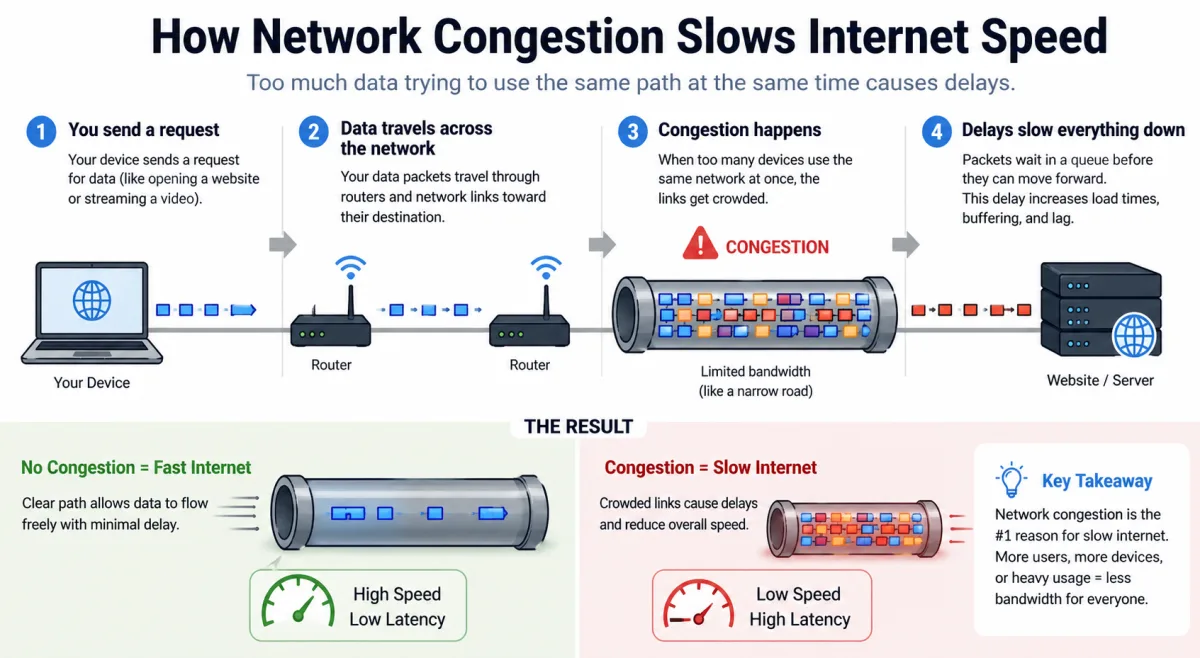
Just like highways during evening commutes, your internet connection has a finite capacity. When too many "vehicles" (data packets) try to use that highway at once, traffic slows to a crawl. This phenomenon, known as network congestion, is the leading reason your WiFi slows down at certain hours. Most homes experience a digital rush hour between 6 PM and 11 PM, when family members are home from work and school, concurrently streaming video, gaming online, making video calls, and downloading large files.
Think about it: your Internet Service Provider (ISP) allocates a certain amount of bandwidth to your home. While that 100 Mbps or 500 Mbps connection might feel ample for one or two devices, it quickly gets parceled out across every active device. A 4K stream alone can consume 25 Mbps. Add a couple of these, plus an online game (which requires low latency more than raw speed, but still uses bandwidth), a video call, and a smart home device updating its firmware, and suddenly your available bandwidth is stretched thin. Your router, the traffic cop of your home network, struggles to manage the increased demand, leading to delays and buffering.
Moreover, the congestion isn't always just inside your home. Your ISP's local infrastructure can also get overwhelmed. If many homes in your neighborhood are all hitting their networks hard at the same time, the shared lines leading back to your ISP's central hub can become a bottleneck. While ISPs continually upgrade their networks, demand often outpaces infrastructure improvements, particularly in densely populated areas. This external congestion is harder to fix yourself, but understanding it helps contextualize the problem.
The Invisible Battles: Interference from Neighbors and Devices
Your WiFi signal isn't just a private highway; it's a radio wave, susceptible to interference from other radio waves. This is a massive, often underestimated, factor in why your WiFi slows down. The 2.4 GHz band, the older and more common WiFi frequency, is particularly vulnerable. It offers broader coverage and better penetration through walls but is shared by a multitude of devices:
- Neighboring WiFi Networks: If you live in an apartment building or a dense residential area, your router is likely competing with dozens of other routers operating on the same or overlapping channels. Each one is essentially shouting over the others, making it harder for your devices to hear your router clearly.
- Household Appliances: Microwave ovens, cordless phones, Bluetooth devices, baby monitors, and even some security cameras all operate in the 2.4 GHz spectrum. When a microwave is running, for example, it can flood the 2.4 GHz band with noise, momentarily crippling your WiFi speeds.
The newer 5 GHz band offers faster speeds and less interference because it has more channels and a shorter range, meaning it's less likely to pick up signals from your neighbors. However, its signals don't penetrate walls as effectively, so devices further from the router might struggle to connect or maintain a fast connection. If you're using an older router that only supports 2.4 GHz, or your devices are too far from your 5 GHz access point, you're constantly fighting these invisible battles for signal clarity.
Dr. Eleanor Vance, a lead network engineer at Broadcom, emphasizes, "Our data indicates that nearly 40% of reported home WiFi performance issues can be attributed directly to wireless interference, with channel overlap being a significant culprit in urban environments. Users often blame their ISP when the problem is an invisible war happening within their own home's radio frequency landscape."
Your Router's Limits: Hardware, Placement, and Firmware
Your router is the heart of your home network, but it's often the most overlooked component. An aging, underpowered, or poorly placed router can be a major bottleneck, irrespective of your internet plan. Here's how:
- Outdated Hardware: Routers, like all technology, evolve. An older router (say, one purchased five or more years ago) might not support the latest WiFi standards (like Wi-Fi 6/802.11ax or Wi-Fi 6E), which are designed to handle more simultaneous connections and higher speeds more efficiently. It might also have slower processors and less memory, struggling to keep up with intense modern demands. If your router is still on 802.11n, you're missing out on significant performance gains available from the continuous growth of modern technology.
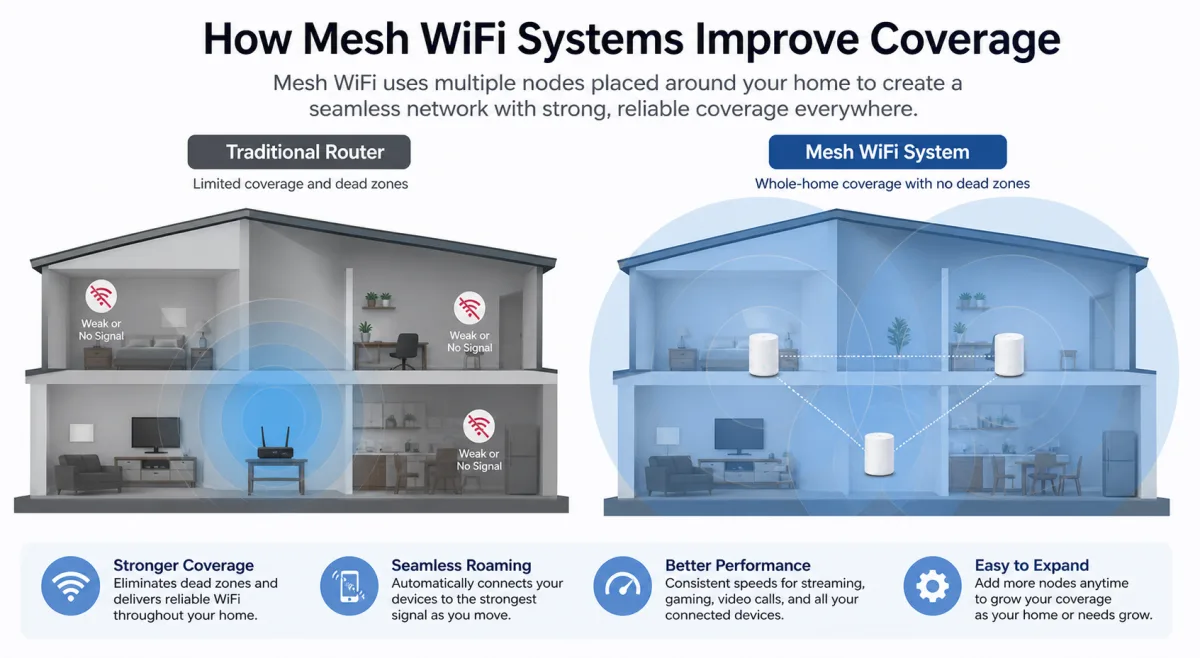
- Poor Placement: This is a classic mistake. Routers emit signals outwards, so placing yours in a corner, inside a cabinet, behind a TV, or in the basement is essentially like putting a blanket over it. Walls, especially those with concrete or metal studs, and large appliances can absorb or reflect WiFi signals, creating dead zones and reducing overall coverage and speed. The ideal spot is central, open, and elevated.
- Firmware Issues: Just like your computer's operating system, your router has firmware – software that controls its functions. Outdated firmware can have bugs, security vulnerabilities, and lack performance optimizations. Manufacturers regularly release updates to improve stability, add features, and boost speed, but many users never bother to install them.
Even a brand-new router can underperform if not configured correctly. Features like Quality of Service (QoS) can prioritize traffic for specific applications (like video calls or gaming) during peak times, preventing less critical tasks from hogging bandwidth. But if QoS isn't set up, your router treats all data equally, even if some is far more time-sensitive.
The Silent Bandwidth Hogs: Background Apps and Device Settings
It's not always about explicit usage; often, background processes on your devices silently devour bandwidth, contributing to your WiFi slowdowns. Modern operating systems and applications are designed to be "smart" and proactive, but this often comes at a cost to your network's resources.
- Automatic Updates: Windows, macOS, smartphone apps, smart TVs, and even smart home devices frequently download updates in the background. These updates can range from a few megabytes to several gigabytes, consuming significant bandwidth without your immediate knowledge. Imagine your smart TV downloading a 5GB update for its operating system right when you're trying to stream a movie.
- Cloud Syncing: Services like Google Drive, Dropbox, OneDrive, and iCloud are constantly syncing files between your devices and the cloud. If you're working on a large project with many files, or you just took hundreds of photos on your phone, these services can be uploading data continuously, sometimes for hours.
- Background App Refresh: Many smartphone apps are set to refresh their content in the background, fetching new data even when you're not actively using them. While convenient for quick loading, it's a constant drain on your network.
- Streaming Quality Settings: Are all your streaming services set to "Auto" or "Highest Quality"? If you have multiple devices streaming 4K content simultaneously, even if your connection *can* handle it, it will push your network to its limits, leaving less bandwidth for other tasks. Manually lowering the quality on less critical streams can free up substantial resources.
Understanding which devices and applications are actively using your network, and critically, how much bandwidth they're consuming, is a powerful step towards regaining control. Many modern routers offer a client list or network monitoring tools that can provide this insight, helping you identify and curb the silent bandwidth hogs.
ISP Throttling, Infrastructure, and Unseen Limitations
Sometimes, the issue isn't within your home network at all, but rather with your Internet Service Provider. While ISPs generally aim to deliver the advertised speeds, several factors on their end can lead to slowdowns at certain hours.
- Network Over-subscription: ISPs often sell more bandwidth than their infrastructure can comfortably handle, especially during peak times. They operate on the assumption that not everyone will use their full bandwidth simultaneously. When too many customers *do* connect and demand high bandwidth, the network becomes saturated, leading to slower speeds for everyone on that segment of the network. This is essentially congestion at a larger scale.
- Throttling: Some ISPs engage in bandwidth throttling, where they intentionally slow down specific types of traffic (e.g., video streaming, torrenting) or connections for certain users. This is often done to manage network congestion or to enforce fair usage policies, though it's a controversial practice. While explicit throttling for specific applications is less common now, general network management can still result in slower speeds during high-demand periods.
- Aging Infrastructure: The quality of the physical infrastructure connecting your home to the ISP's network plays a huge role. Older copper lines (DSL) are inherently slower and more susceptible to degradation than fiber optic cables. Even with cable internet (coaxial), shared nodes in older neighborhoods can become overloaded. If your street or building has outdated cabling, even the best router and home setup won't be able to overcome those external limitations.
- Data Caps and "Fair Use" Policies: While less common for wired broadband in many regions now, some ISPs still impose data caps or "fair use" policies. Exceeding these limits can result in reduced speeds for the remainder of your billing cycle. Always check your service agreement to understand any such restrictions.
Diagnosing ISP-related issues requires a bit of detective work. Running speed tests at different times of the day, particularly during off-peak hours (e.g., early morning), and comparing those results to your subscribed speed can provide clues. If your speeds are consistently much lower than advertised, even during off-peak times, it's time to contact your ISP. They might be able to diagnose line issues or suggest upgrades to your service or local infrastructure.
Optimizing Your Home Network: Practical Fixes for Instant Relief
Now that you understand *why* your WiFi slows down, let's talk about the practical steps you can take to alleviate these frustrations and reclaim your internet speed. Many of these solutions are simple and don't require deep technical knowledge.
- Reboot Your Router Regularly: This is the classic IT solution for a reason. A router, like any computer, can benefit from a fresh start. Rebooting clears its memory, resolves temporary glitches, and helps it re-establish optimal connections. Aim to do this at least once a month, or whenever you notice persistent slowdowns.
- Optimize Router Placement: Move your router to a central, open location in your home, away from thick walls, large appliances, and reflective surfaces. Elevate it if possible. The fewer obstacles between your router and your devices, the stronger and faster your signal will be.
- Utilize the 5 GHz Band: If your router supports it, connect devices that require high bandwidth (streaming devices, gaming consoles, work computers) to the 5 GHz band. Reserve the 2.4 GHz band for devices further away or those that don't need high speed (smart home sensors, older phones). You might need to give your 5 GHz network a separate name in your router settings.
- Change WiFi Channels: Use a WiFi analyzer app (available for smartphones) to scan for congested channels in your area. Most routers automatically select a channel, but it might not be the best one. Manually switch to a less congested channel (1, 6, or 11 for 2.4 GHz are typically best, and there are many more non-overlapping channels for 5 GHz) to reduce interference from neighbors.
- Update Router Firmware: Check your router manufacturer's website for the latest firmware updates and follow their instructions to install them. This can bring performance improvements, bug fixes, and security enhancements.
- Implement Quality of Service (QoS): If your router has QoS settings, configure them to prioritize traffic for critical applications (e.g., Zoom, Netflix, online gaming) during peak hours. This ensures that even if your overall bandwidth is limited, your most important activities get preferential treatment.
- Limit Background Bandwidth Usage: Disable automatic updates on devices during peak hours. Adjust cloud syncing settings to only upload during off-peak times or when connected to power. Review and disable background app refresh for non-essential apps on your smartphones and tablets.
- Consider a Mesh WiFi System or Wi-Fi Extenders: For larger homes or those with many dead zones, a mesh WiFi system can provide seamless coverage and better performance than a single router, especially for devices farther away. Extenders can also help, though they often halve bandwidth.
- Upgrade Your Hardware: If your router is more than 3-5 years old, consider upgrading to a Wi-Fi 6 (802.11ax) or Wi-Fi 6E (802.11ax on 6GHz) router. These newer standards offer significant improvements in speed, efficiency, and the ability to handle multiple devices simultaneously. This is especially true as innovation is leading the future forward in wireless technology.
- Use Ethernet for Stationary Devices: For desktop computers, smart TVs, and gaming consoles, a wired Ethernet connection is always faster, more reliable, and frees up WiFi bandwidth for mobile devices.
Here's a comparison of common WiFi standards and their typical performance:
| WiFi Standard | Year Introduced | Max Theoretical Speed | Typical Home Speed | Key Advantage |
|---|---|---|---|---|
| 802.11n (Wi-Fi 4) | 2009 | 600 Mbps | 50-150 Mbps | First widespread use of MIMO |
| 802.11ac (Wi-Fi 5) | 2013 | 3.5 Gbps | 200-800 Mbps | First to support 5 GHz exclusively |
| 802.11ax (Wi-Fi 6) | 2019 | 9.6 Gbps | 500-1500 Mbps | Better performance in congested environments |
| 802.11ax (Wi-Fi 6E) | 2020 | 9.6 Gbps | 500-2000 Mbps | Adds 6 GHz band for less interference |
"In the past five years, the average number of internet-connected devices in U.S. households has surged from around 10 to over 25, creating unprecedented demand on home networks," reports a 2023 study by Parks Associates, highlighting the critical need for robust home WiFi solutions.
What This Means for You
The frustration of slow WiFi during specific hours isn't a mysterious curse; it's a solvable technical problem rooted in predictable patterns of usage and environmental factors. By understanding the interplay of network congestion, wireless interference, router limitations, and silent bandwidth hogs, you gain the power to diagnose and address the issues yourself.
You don't need to be an IT expert to make a significant difference. Simple steps like rebooting your router, optimizing its placement, and making a few tweaks in its settings can often yield immediate improvements. Investing in modern hardware or a mesh system, if your budget allows, can provide a more robust and future-proof solution for handling the ever-increasing demands of the connected home. The goal isn't just to avoid slowdowns, but to ensure your home network supports your lifestyle, enabling seamless streaming, productive work, and uninterrupted communication when you need it most.
Frequently Asked Questions
Does a VPN slow down my WiFi?
Yes, a Virtual Private Network (VPN) can introduce some latency and slightly reduce your internet speed because it encrypts your data and routes it through an external server. While the impact is usually minimal on a fast connection, it can become noticeable if your baseline WiFi speed is already struggling, especially during peak hours.
Should I restart my router every day?
While restarting your router daily isn't strictly necessary, doing so once a week or whenever you notice a performance drop is a good practice. It helps clear the router's cache, refreshes its connections, and can resolve minor software glitches that accumulate over time, leading to more stable performance.
What's the best WiFi band to use for my devices?
The best WiFi band depends on the device and its location. For devices close to the router that require high speed and low latency (e.g., streaming boxes, gaming consoles, laptops for video calls), the 5 GHz band is generally superior due to its faster speeds and less interference. For devices further away or those that don't need high bandwidth (e.g., smart home devices, older phones), the 2.4 GHz band offers better range and wall penetration, making it a more reliable choice.