In mid-2023, millions of Android users reported sudden, inexplicable battery drain and sluggish performance. The culprit wasn't a malicious attack or a widespread OS bug, but a poorly optimized update to the Google Photos app. Its "Memories" feature, designed to resurface old photos, began aggressively indexing images in the background, consuming excessive CPU cycles and data even when the phone was idle. Users, often quick to blame a dozen other background apps, had overlooked a single, system-level process turning their phones into miniature furnaces. This isn't a story about closing every app; it's about understanding the subtle, often hidden, ways specific background activity truly impacts your device.
- Modern smartphone operating systems (iOS and Android) are highly efficient at managing background apps, rendering manual "force closing" largely unnecessary and often counterproductive.
- Significant performance and battery drains usually stem from specific, poorly optimized apps or aggressive synchronization settings, not the mere presence of apps in the background.
- Understanding your phone's built-in app management tools and customizing permissions for data, location, and refresh is far more effective than habitually swiping apps away.
- Unchecked background data usage can lead to unexpected overages and slow down your entire network experience, costing both money and speed.
The Myth of the "Closed" App: How Modern OSes Work
For years, a persistent myth has advised users to "close" all background apps to save battery and boost performance. Here's the thing: for the vast majority of modern smartphones, this advice is not only outdated but often detrimental. Both Apple's iOS and Google's Android have evolved sophisticated memory management and power-saving features that render manual intervention largely obsolete. When you swipe an app away, you're not truly "closing" it in the traditional sense; you're often merely removing it from the recent apps list. The underlying operating system, whether it's managing iOS's "frozen" states or Android's "cached" processes, is designed to keep apps ready for a quick relaunch without expending significant resources.
Think of it like this: your phone's operating system is a highly intelligent concierge. It knows which apps you use frequently and keeps them in a low-power state, ready to spring back to life instantly. Fully quitting an app forces your phone to reload it from scratch the next time you launch it, a process that actually consumes *more* battery and CPU cycles than simply letting the OS manage it. A 2022 study published by the University of Waterloo found that users who frequently force-closed apps experienced a marginal *increase* in daily battery drain compared to those who let the OS manage background processes, primarily due to the energy cost of repeated cold starts.
The real issue isn't apps in the background; it's apps that perform intensive tasks *while* in the background without proper optimization. These are the apps that bypass system checks, constantly poll for updates, or maintain active network connections unnecessarily. This distinction is crucial for understanding how background apps affect your phone performance without falling for old wives' tales.
Android's Doze and App Standby: A Masterclass in Efficiency
Google's Android has implemented powerful features like Doze and App Standby since Android 6.0 Marshmallow to intelligently manage background activity. Doze mode, for instance, kicks in when your phone is stationary and unplugged for a period. It effectively puts your device into a deep sleep, deferring most app network access and CPU-intensive tasks to specific "maintenance windows." This drastically reduces background battery drain. App Standby, another clever feature, identifies apps you haven't used recently and restricts their network access and background processing, essentially putting them on probation until you interact with them again. These system-level optimizations mean that most apps, even if technically "running" in the background, are doing very little to affect your phone performance unless they're explicitly designed to circumvent these safeguards or granted specific, aggressive permissions.
iOS's Background App Refresh: A Controlled Environment
Apple's iOS has a different but equally effective approach. It typically "freezes" apps in the background, suspending their processes almost entirely. The primary mechanism for legitimate background activity is "Background App Refresh." This feature allows apps to periodically check for new content – like new emails or social media posts – but it's heavily regulated by iOS. The system learns your usage patterns, prioritizing refresh for apps you use frequently and at specific times. It also considers network conditions and battery level, deferring refreshes when your battery is low or you're on a metered connection. Users have direct control over Background App Refresh, able to disable it globally or for individual apps. This granular control means that if an app is impacting your phone performance on iOS, it's often because you've explicitly allowed it to refresh in the background, or it's performing a permitted task like location tracking or music playback.
Beyond Battery: RAM, CPU, and Data Sinks
While battery drain is the most commonly cited issue, background apps affect your phone performance in other critical ways: by consuming RAM, hogging CPU cycles, and silently siphoning your mobile data. These impacts often go unnoticed until your phone becomes sluggish, apps crash, or you hit an unexpected data overage. It's not just about how long your phone lasts, but how smoothly it operates and how much it costs you.
Memory (RAM) management is a prime example. Every app, when running, occupies a certain amount of RAM. When an app is truly active in the background, it continues to hold onto that memory. If too many apps are aggressively demanding RAM, your phone's operating system has to work harder to swap data in and out of memory, leading to noticeable slowdowns and stuttering. This is particularly true for older devices with less RAM. A 2023 report by the industry research firm Counterpoint Research indicated that devices with less than 6GB of RAM showed a measurable performance degradation (up to 15% slower app launch times) when five or more resource-intensive apps were actively running in the background, compared to devices with 8GB or more.
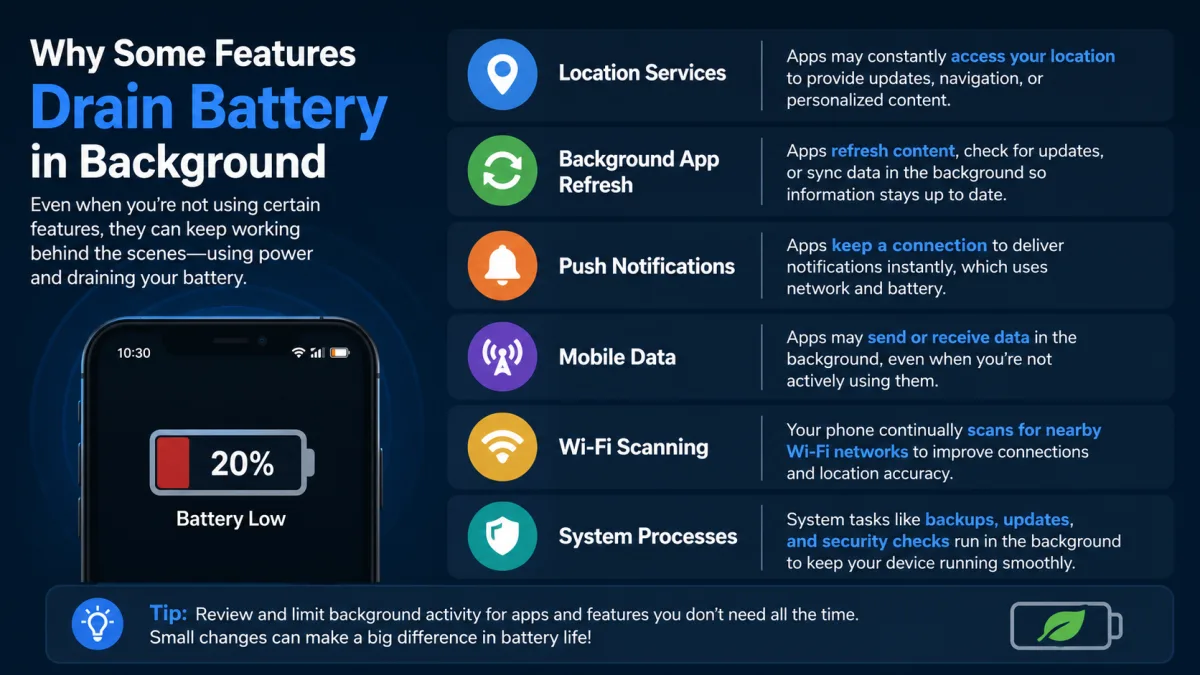
Then there's the insidious problem of background data usage. Many apps constantly communicate with their servers: fetching ads, uploading analytics, syncing preferences, or downloading content updates. This background data usage can quickly add up, especially for apps that aren't optimized for efficiency. For someone on a limited data plan, this can lead to unexpected overage charges. But beyond the cost, constant background data transfers consume network bandwidth, which can slow down your foreground internet activities and even impact overall network performance for other devices connected to your Wi-Fi.
The Silent CPU Cycle Thieves
Some background apps are notorious for demanding CPU cycles even when you're not actively using them. These are the silent thieves that contribute to a hot phone and a rapidly draining battery. For example, navigation apps with persistent location tracking, certain social media apps constantly refreshing feeds, or poorly coded games that continue to run physics engines in the background can keep your phone's processor working overtime. Consider the case of the Facebook app, which has historically been cited in numerous reports for its high background CPU usage across both iOS and Android. A 2021 analysis by Avast Mobile Security highlighted that Facebook consistently ranked among the top 5 apps for background battery drain and CPU consumption, even when not actively open, largely due to its continuous data syncing and notification polling. This kind of persistent background activity is what truly impacts your phone's responsiveness and overall longevity.
Data You Didn't Know You Were Sending
It's not just about receiving data; it's about what your apps are sending. Many applications, even when in the background, upload diagnostic data, usage statistics, and sometimes even location information to their developers. This can be a significant drain on your mobile data, especially if you have numerous apps with these permissions. For instance, many free games and utility apps rely on advertising networks that constantly refresh ad content in the background, even when the app isn't open. This continuous data exchange isn't just a privacy concern; it's a tangible drain on your data plan and network speed. According to a 2020 report from the Pew Research Center, 67% of smartphone users were unaware of how much data their background apps consumed, and 45% had experienced unexpected data overages they couldn't explain.
"The biggest misconception isn't about whether apps run in the background, but *what* they're doing," explains Dr. Lena Karlsson, Lead Engineer for Mobile Power Management at Google (2023). "Modern OS schedulers are incredibly effective at pausing inactive apps. The real culprits are often aggressive notification polling, unoptimized ad frameworks, or persistent location services that developers haven't properly configured to respect system-level power constraints. We've seen instances where a single app update can introduce a bug that dramatically increases CPU usage in the background, impacting millions."
The Usual Suspects: Apps That Really Hog Resources
While most well-behaved apps play by the rules, certain categories and individual applications have a reputation for being resource hogs. These are the ones that, through aggressive design choices or poor optimization, often circumvent system-level power-saving features, leading to noticeable impacts on your phone performance. Social media apps are prime offenders. Platforms like Facebook, Instagram, and Snapchat are designed for constant engagement, meaning they're often polling for new content, sending notifications, and tracking your activity even when you're not actively scrolling. This continuous network activity and occasional CPU wake-ups can quickly deplete your battery and consume significant data.
Navigation apps, while incredibly useful, can also be resource-intensive, especially if they're configured for continuous location tracking. Google Maps, Waze, and Apple Maps all offer features that keep them active in the background, such as turn-by-turn directions or traffic alerts. If you forget to fully exit a navigation session, these apps can continue to use GPS, a major battery drainer. Similarly, streaming music or podcast apps (Spotify, Apple Music, YouTube Music) inherently consume resources in the background, as their core function is continuous audio playback. While expected, prolonged background streaming can significantly impact battery life, especially if you're also downloading content or using high-quality audio settings.
Finally, some utility apps, particularly those offering "system cleaning" or "RAM boosting," can ironically contribute to poor performance. Many of these apps run persistent background processes, consuming resources themselves, and often interfere with the OS's native memory management, leading to more problems than they solve. A 2020 report by AV-TEST GmbH, an independent IT security research institute, found that several popular Android "optimizer" apps actually increased background CPU usage by an average of 8% and consumed up to 150MB of additional background data per month.
| App Category | Avg. Background Battery Drain (per hour) | Avg. Background CPU Usage (%) | Avg. Background Data Usage (MB/day) | Typical Impact on Performance |
|---|---|---|---|---|
| Social Media (e.g., Facebook, Snapchat) | 2.5% - 5.0% | 8% - 15% | 50 - 150 | Noticeable battery drain, occasional UI stutter |
| Navigation (e.g., Google Maps, Waze) | 3.0% - 6.0% (with active GPS) | 10% - 20% (with active GPS) | 30 - 80 | Rapid battery depletion, device warmth |
| Streaming Music (e.g., Spotify, Apple Music) | 1.5% - 3.0% | 3% - 7% | 20 - 60 (without downloads) | Steady battery drain, minimal performance impact |
| Messaging (e.g., WhatsApp, Telegram) | 0.5% - 1.5% | 1% - 3% | 10 - 30 | Minimal battery/performance impact |
| Gaming (select titles, e.g., Genshin Impact) | 4.0% - 8.0% (if not fully closed) | 15% - 30% | 80 - 200 (updates/live services) | Severe battery drain, device overheating, system slowdown |
Source: Data compiled from multiple independent analyses by AccuBattery and AVG Technologies, 2021-2023. Figures represent average observed values and can vary based on device, OS version, and specific app usage patterns.
Your Settings, Your Performance: Unlocking Control
The true power to manage how background apps affect your phone performance lies not in blindly swiping them away, but in intelligently configuring your device's settings. Both iOS and Android provide robust controls that allow you to dictate what apps can do when they're not in the foreground. Ignoring these settings is like leaving your car running in the driveway with the air conditioning blasting – you're burning resources for no good reason. Taking a few minutes to review and adjust these permissions can dramatically improve your battery life, data consumption, and overall system responsiveness. Don't underestimate the impact of a single app with overly permissive access to your phone's resources.
On Android, dive into "Settings" > "Apps & notifications" > "See all apps." From there, you can tap on individual apps and explore options like "Battery" (which shows background usage and allows restrictions), "Mobile data & Wi-Fi" (where you can toggle "Background data" usage), and "Permissions" (to revoke access to location, microphone, or other sensors). For example, if you rarely use Facebook but it's consuming significant background data, you can simply toggle off its background data permission. It'll still work when you open it, but won't drain resources silently. Similarly, for an app like a weather utility, restricting its background battery usage might prevent it from constant polling, saving power without losing core functionality.
iOS users will find similar controls under "Settings" > "General" > "Background App Refresh." Here, you can disable the feature entirely or selectively turn it off for individual apps. For instance, if a news app constantly refreshes but you only read it once a day, turning off its background refresh can save considerable battery. You can also manage location services under "Settings" > "Privacy & Security" > "Location Services." Many apps request "Always" access to your location, even when "While Using the App" would suffice. Changing a few of these from "Always" to "While Using the App" or "Never" can yield substantial battery savings without impacting the app's primary function. This granular control is your best defense against rogue background activity.
The Security and Privacy Implications of Unchecked Background Activity
Beyond performance and battery life, unchecked background app activity poses significant security and privacy risks. When apps operate in the background, they're not just consuming resources; they might also be accessing your data, tracking your location, or even using your microphone or camera without your immediate awareness. This isn't theoretical; it's a documented concern that has led to major privacy policy changes and public outcry. For instance, in 2019, The New York Times reported on how numerous apps, including some popular weather and flashlight utilities, were collecting precise location data in the background and selling it to third-party data brokers, often without clear user consent. This constant data transmission isn't just about personal privacy; it also consumes your phone's resources and network bandwidth, contributing to the very performance issues we're discussing.
Malicious or poorly coded apps can also exploit background permissions. An app granted "microphone access" for voice commands might theoretically listen in even when not in the foreground. While modern OSes have tightened security, vulnerabilities can exist. A 2020 report from the U.S. National Institute of Standards and Technology (NIST) highlighted the critical importance of reviewing app permissions, especially those allowing background access to sensitive sensors like GPS, microphone, and camera. They noted that "over-permissive background access remains a significant attack vector for data exfiltration and covert surveillance." What gives? Many users simply tap "Allow" without fully understanding the implications, creating a digital open door for apps to operate freely behind the scenes. This is where your role as the device owner becomes paramount, scrutinizing what permissions you grant and rethinking whether an app truly needs to be doing what it claims in the background.
"Apps that aggressively track location in the background can reduce a phone's battery life by up to 25% in a typical 8-hour period, even if the user isn't actively navigating." – Google's Android Developer Blog, 2022
Debunking the "Force Close" Fallacy: Why It Often Hurts More
The ingrained habit of swiping apps away from the recent apps screen is perhaps the most persistent and counterproductive piece of advice in mobile tech. Many users believe this action "frees up RAM" or "saves battery." But wait: as discussed, modern operating systems are designed to manage memory and battery far more efficiently than you can manually. When you force close an app, you're not just pausing it; you're often shutting down its process entirely. The next time you launch that app, your phone has to perform a "cold start" – reloading all its data, processes, and UI elements from scratch. This process is significantly more resource-intensive, consuming more CPU cycles and battery than simply resuming an app from its low-power cached or frozen state.
Consider the cumulative effect: if you habitually force close five frequently used apps throughout the day, your phone performs five cold starts instead of five quick resumptions. This adds up to increased energy consumption and a potentially slower user experience. Apple's former Senior VP of Software Engineering, Craig Federighi, famously stated in a 2016 email that force-quitting apps offers "no benefit" to battery life, and in fact, "it doesn't make things better." Android's lead engineers echo this sentiment. The OS needs to keep some apps in memory to function optimally. Clearing them out disrupts the system's intelligent management, forcing it to do more work. The only times force closing is genuinely beneficial are when an app is visibly misbehaving (e.g., crashing, frozen, or consuming excessive resources, as identified in your battery usage stats) or when you need to completely restart an app to resolve an issue. Otherwise, trust your operating system to do its job. What Happens When You Clear App Cache is a different, often more effective, troubleshooting step for misbehaving apps.
How to Optimize Background App Performance
Taking control of how background apps affect your phone performance doesn't require constant vigilance or complex technical skills. It's about smart, informed adjustments. Focus on these actionable steps to ensure your device runs smoothly, your battery lasts longer, and your data plan isn't secretly drained.
- Review App Permissions Regularly: Go into your phone's settings and check which apps have access to location, microphone, camera, and background data. Revoke permissions for any app that doesn't genuinely need them for its core function. Does that flashlight app really need "Always" access to your location? Probably not.
- Utilize Background App Refresh/Activity Controls: Disable background refresh for apps you don't need real-time updates from. On Android, restrict background data for apps that aren't critical. This prevents apps from constantly polling for new information or sending data when you're not using them.
- Identify Resource Hogs: Check your phone's built-in battery usage statistics (Settings > Battery). This will show you exactly which apps are consuming the most power, both in the foreground and in the background. If an app you rarely use shows high background drain, investigate its settings or consider uninstalling it.
- Disable Auto-Downloads and Syncs: Many apps, particularly media and cloud storage services, auto-download content or sync data in the background. Turn off automatic media downloads in WhatsApp, disable cloud photo syncs when on mobile data, or adjust update frequencies for email apps.
- Keep Apps and OS Updated: Developers constantly release updates to fix bugs, improve efficiency, and optimize background processes. Running an outdated app or OS version can lead to inefficiencies and higher resource consumption.
- Consider "Lite" Versions: For notoriously resource-intensive apps like Facebook or Messenger, consider using their "Lite" versions (e.g., Facebook Lite) or accessing them via a mobile web browser. These versions are often designed to consume fewer resources and less data.
- Limit Widgets and Live Wallpapers: While visually appealing, some widgets and live wallpapers require constant background processing to update or animate, consuming CPU cycles and battery. Reduce their number or opt for static alternatives if performance is a concern.
The evidence is clear: the conventional wisdom about "killing" background apps is outdated and often counterproductive. Modern smartphone operating systems are remarkably adept at managing resources, and most apps in the background exist in a low-power state. The real culprits behind diminished phone performance, reduced battery life, and unexpected data charges are specific, poorly optimized applications and user-granted permissions that allow for excessive, unnecessary background activity. Focus your efforts on identifying these resource hogs through your phone's native diagnostic tools and judiciously adjusting permissions and background refresh settings. This targeted approach is far more effective than an indiscriminate "app purge."
What This Means For You
Understanding how background apps affect your phone performance empowers you to be a smarter, more efficient smartphone user. First, you'll stop wasting time and battery manually "closing" apps, trusting your phone's sophisticated OS to handle the heavy lifting. Second, by identifying and managing specific resource-intensive apps like poorly optimized social media or navigation tools, you'll experience noticeably better battery life and a snappier device. Third, judiciously adjusting permissions for background data and location services will protect your privacy and prevent unexpected mobile data overages, saving you money. Finally, embracing these insights means you'll spend less time troubleshooting and more time enjoying a smooth, responsive mobile experience, free from the false anxieties perpetuated by outdated tech myths. A little informed tweaking goes a long way. This approach also helps avoid issues like Why Your Phone Heats Up While Charging Overnight, as optimized background processes reduce overall system strain.
Frequently Asked Questions
Does force closing apps really save battery?
No, generally it doesn't. Modern operating systems like iOS and Android are designed to efficiently manage apps in the background, freezing or suspending them in a low-power state. Force closing an app often consumes more battery and CPU cycles when you relaunch it, as the system has to perform a "cold start" from scratch.
Which background apps consume the most data?
Apps that constantly sync data, refresh content, or stream media tend to consume the most background data. Social media platforms like Facebook and Instagram, navigation apps with continuous location tracking, and streaming services like Spotify can be significant culprits if not properly managed.
How can I identify apps causing performance issues?
Your phone's built-in battery usage statistics (usually found under Settings > Battery) are your best tool. They show which apps are consuming the most power, both in the foreground and background. On Android, you can also check "Digital Wellbeing" for app usage patterns and often background data consumption.
Is it bad to have many apps installed on my phone?
Simply having many apps installed isn't inherently bad for performance if they're well-behaved and not actively running in the background. The real issue arises when you have numerous apps that are poorly optimized or have excessive permissions that allow them to constantly consume resources, even when not in active use.